Guide: Set up AWS
This guide helps you set up your AWS account on DataStori. 🚀
DataStori runs data pipelines in your environment using AWS Fargate and securely integrates with your account using a cross-account IAM role.
In the AWS Infrastructure form, please leave the secret key and access key fields blank or provide random values. These fields have been deprecated in favor of cross-account IAM roles.
Information and Resources Checklist
Before you begin, please keep at hand the following information and resources from your AWS account.
- Networking
- VPC ID: The ID of the Virtual Private Cloud for running pipelines.
- Subnet IDs: A list of subnet IDs where the pipelines will run.
- Security Group IDs: A list of security group IDs to apply to the pipeline containers.
- Services
- ECS Cluster: Create a new AWS Fargate ECS cluster and note its ARN.
- S3 Bucket: The name of the S3 bucket where pipeline output data will be stored.
- S3 Bucket Region: The AWS region where your S3 bucket is located (e.g.,
us-east-1). - RDBMS (Optional): Connection details for any relational database where pipeline output will be written, in addition to the AWS S3 bucket.
IAM Configuration Steps
You'll need to create two IAM roles and two IAM policies to grant DataStori the necessary permissions to your AWS account.
Step 1: Create a Log Group IAM Policy
This policy allows the Fargate container to create and write logs.
- Navigate to IAM -> Policies and click on Create Policy.
- Switch to the JSON tab and paste the following code.
- Name the policy "log_group_creation_policy".
{
    "Version": "2012-10-17",
    "Statement": [
        {
            "Effect": "Allow",
            "Action": [
                "logs:CreateLogGroup",
                "logs:CreateLogStream",
                "logs:PutLogEvents",
                "logs:DescribeLogStreams"
            ],
            "Resource": "*"
        }
    ]
}
- Click on Save/Create and exit.
Step 2: Create the ECS Task Execution Role
This role allows the Fargate container to pull images and write logs.
- Navigate to IAM -> Roles and click on Create role.
- For the trusted entity, select AWS service, and for the use case, choose Elastic Container Service.
- Select the Elastic Container Service Task use case and click on Next.
- On the permissions page, the
AmazonECSTaskExecutionRolePolicyis attached by default. Also attach the AmazonS3FullAccess policy and the "log_group_creation_policy" created in Step #1 and click on Next. - Name the role
datastori-ecs-task-execution-roleand click on Create role. - Once created, find the role and copy its ARN. You will need this for the next step.
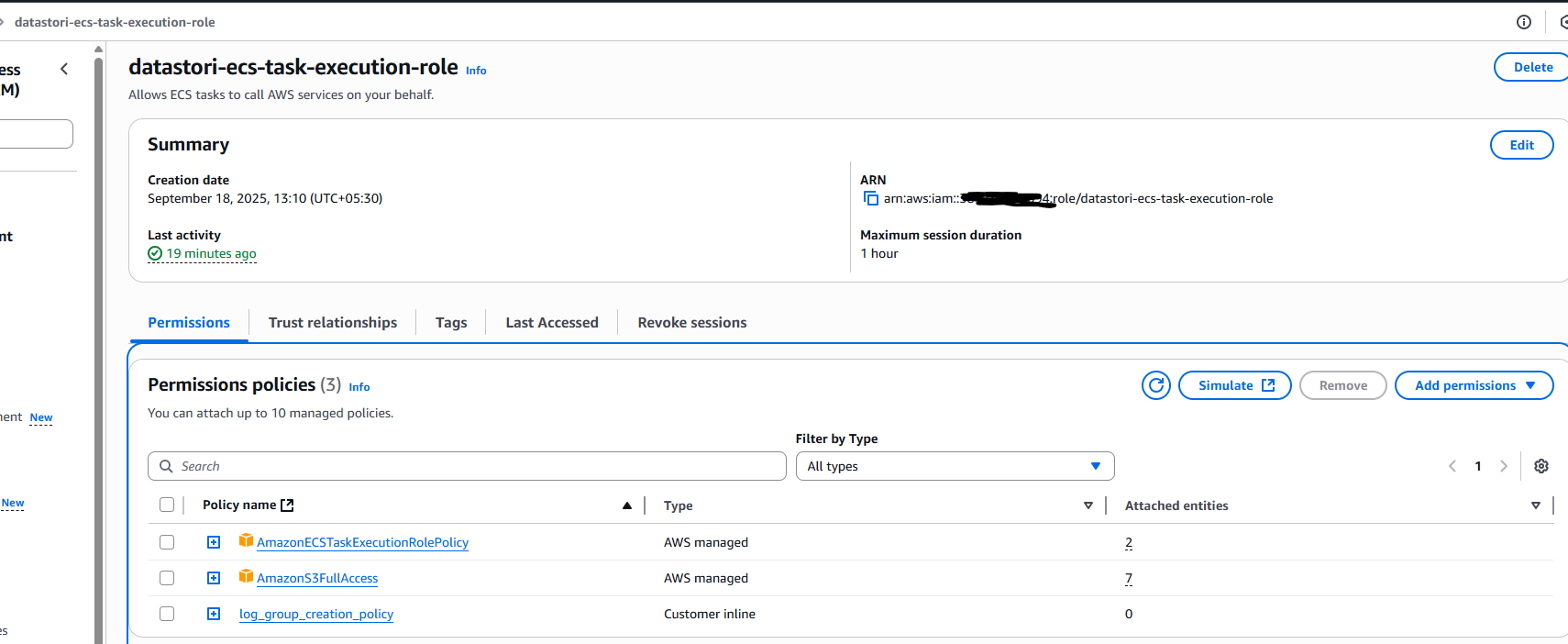
Step 3: Create the DataStori Management Policy
This policy defines the specific actions DataStori is allowed to perform, like starting and stopping pipeline tasks.
- Navigate to IAM -> Policies and click on Create policy.
- Switch to the JSON tab and paste the following code.
- Important: Replace
<YOUR_AWS_ACCOUNT_ID>with your actual 12-digit AWS Account ID.
{
    "Version": "2012-10-17",
    "Statement": [
        {
            "Sid": "RunAndInspectTasks",
            "Effect": "Allow",
            "Action": [
                "ecs:RunTask",
                "ecs:StopTask",
                "ecs:DescribeTasks",
                "ecs:ListTasks",
                "ecs:DescribeTaskDefinition"
            ],
            "Resource": "*"
        },
        {
            "Sid": "RegisterAndCleanupTaskDefinitions",
            "Effect": "Allow",
            "Action": [
                "ecs:RegisterTaskDefinition",
                "ecs:DeregisterTaskDefinition"
            ],
            "Resource": "*"
        },
        {
            "Sid": "PassSingleRoleToECSTasks",
            "Effect": "Allow",
            "Action": "iam:PassRole",
            "Resource": "arn:aws:iam::<YOUR_AWS_ACCOUNT_ID>:role/datastori-ecs-task-execution-role",
            "Condition": {
                "StringEquals": {
                    "iam:PassedToService": "ecs-tasks.amazonaws.com"
                }
            }
        }
    ]
}
- Click on Next, give the policy the name
DataStori-ECSTaskManage-Policy, and click on Create policy.
Step 4: Create the Cross-Account Role for DataStori
This role trusts DataStori's AWS account and uses the policy you just created to grant permissions to it.
- Navigate to IAM -> Roles and click on Create role.
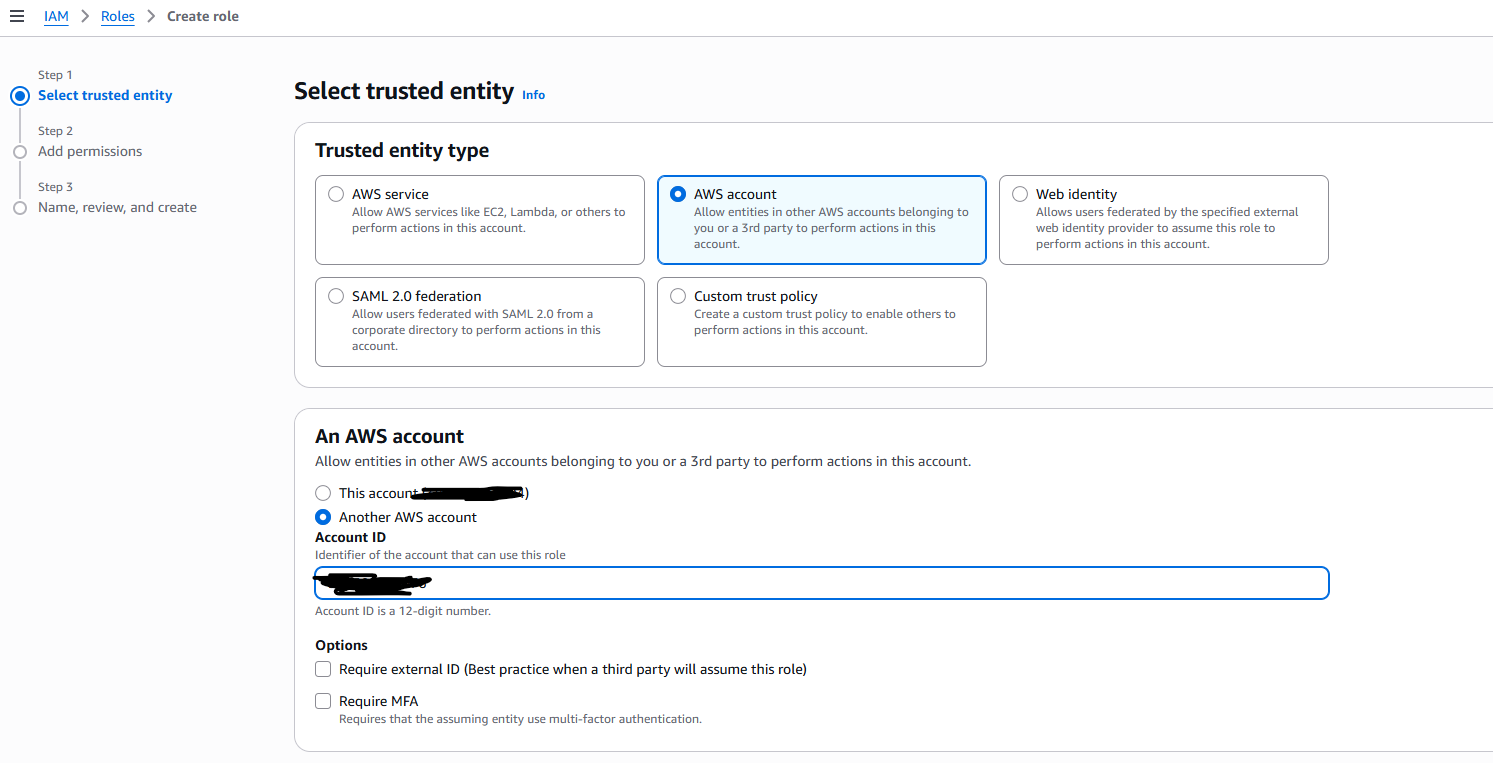
- For the trusted entity type, select AWS account and choose Another AWS account.
- Enter the AWS Account ID for DataStori: 595301649076 and click on Next.
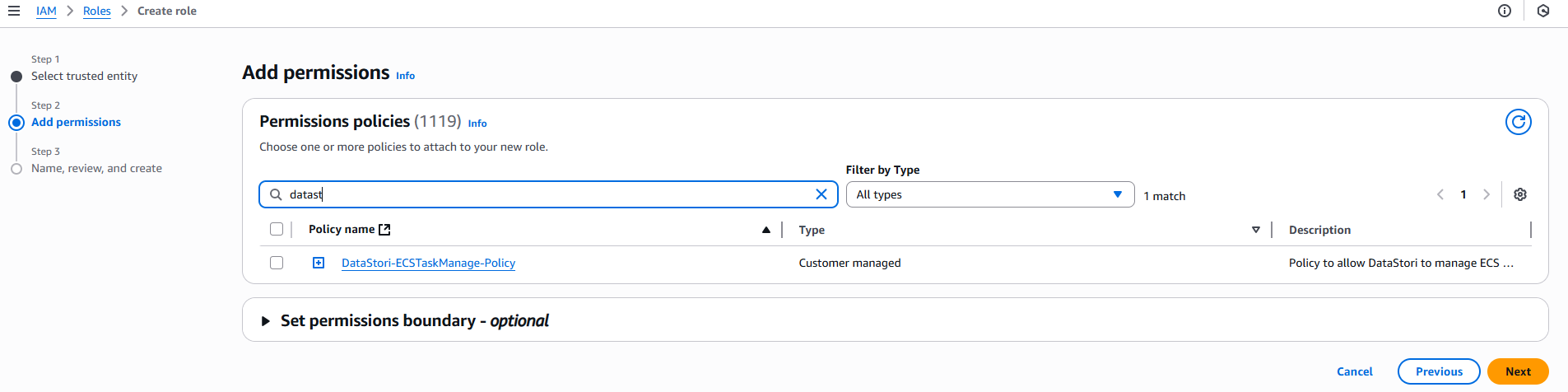
- On the permissions page, search for and select the
DataStori-ECSTaskManage-Policyyou created in Step 3 and click on Next. - Name the role
datastori-roleand click on Create role. - Once created, find the role and copy its ARN.
5. Share Your AWS Account ID with DataStori
Please copy and share your AWS account ID with ishan@datastori.io. This is to allow your AWS account to download the code from DataStori's docker repo.
Logging (Optional)
By default, DataStori writes the pipeline logs to CloudWatch. If you want to customize the logging destination, please share the ARN of the CloudWatch log group with ishan@datastori.io.
Summary
Please be ready with the following information to complete the AWS infrastructure setup.
- Your AWS Account ID:
123456789012. Share your AWS Account ID with ishan@datastori.io. - VPC ID:
vpc-0123abcd - Subnet IDs:
subnet-abcde123, subnet-fghij456 - Security Group IDs:
sg-5678efgh - S3 Bucket Name:
your-datastori-bucket - S3 Bucket Region:
us-east-1 - ECS Cluster ARN:
arn:aws:ecs:region:account-id:cluster/YourClusterName - Task Execution Role ARN:
arn:aws:iam::account-id:role/datastori-ecs-task-execution-role - DataStori Cross-Account Role ARN:
arn:aws:iam::account-id:role/datastori-role - CloudWatch Log Group ARN (Optional): If you have a preferred logging destination.