3. Create a Connection Between ServiceTitan and Azure SQL
Having created connections to ServiceTitan (source) and Azure SQL (destination), the next step is to create an integration between ServiceTitan and Azure SQL to serve as the basis for moving data from the source to the destination.
Create a New Integration
- In the Integrations tab, select '+ Add New Integration'.
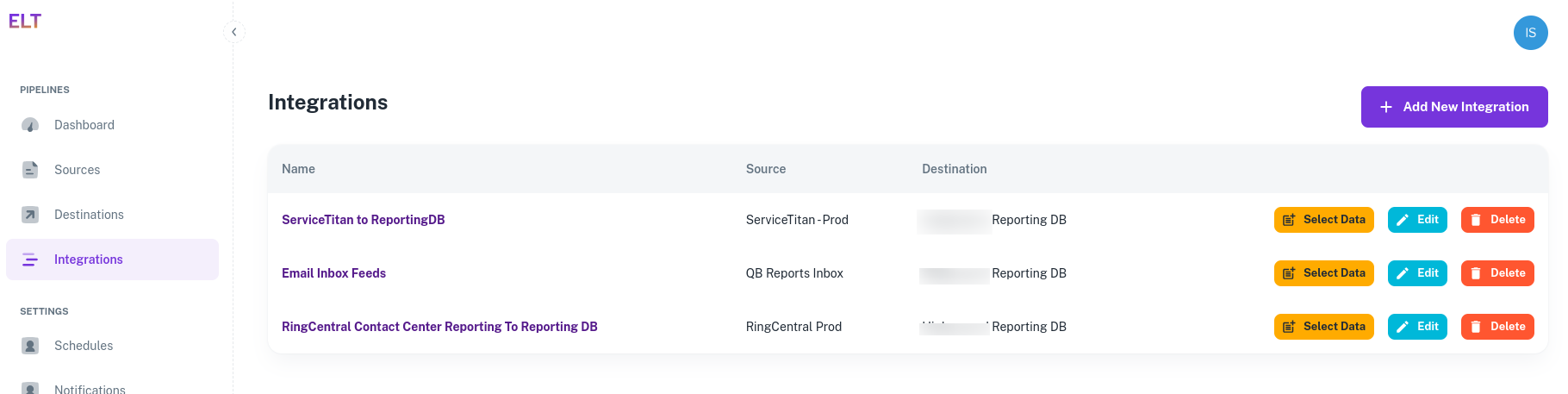
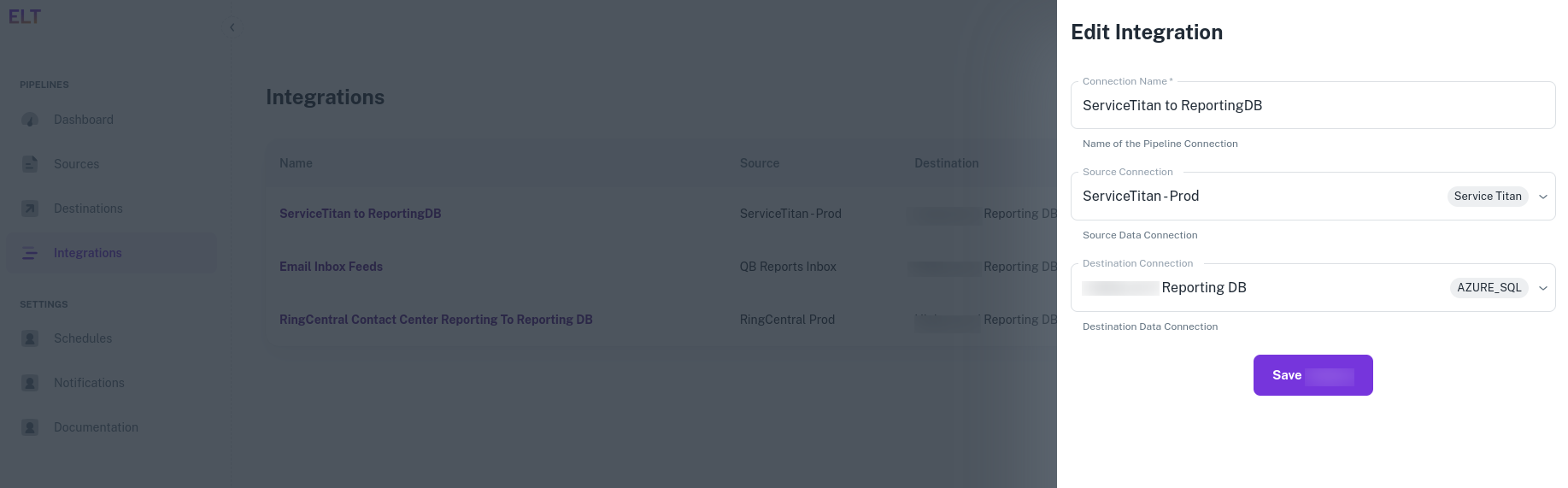
- In this example, we name the new integration as 'ServiceTitan to ReportingDB'. Select the source and the destination connections created in the previous two steps.
Next, we use this connection to fetch data from ServiceTitan and move it into Azure SQL.