Restricting data access to agents and users
A role decides what a person can do in DataStori. Data access decides which tables they can reach. Admins set it table by table, so a person sees only the data they need, such as one team's pipelines and not finance or HR tables.
How access works
The tables you grant come from the data catalog. Each pipeline lists the tables it produces. A table appears there once its pipeline has documentation.
Restrictions apply to both silver and gold tables:
- Silver tables hold the source data that ingestion pipelines land in your lakehouse.
- Gold tables hold the business-ready output of transformation pipelines.
Each pipeline on the Data Governance page is tagged silver or gold, and you grant both kinds of table the same way.
- Admins can reach every table in the catalog. You do not need to grant them anything.
- Editors and Viewers can reach only the tables an Admin has granted them.
Access through the AI agents
The Data Exploration Agent and the MCP server act as the person who is signed in. They use that person's table grants, so the agent answers from the tables that person can reach. Two people can ask the same question and get answers from different data.
To limit what an agent can see for someone, change that person's grants. There is no separate setting for the agent.
Grant or remove table access
Only Admins can change data access.
- Go to Account > Data Governance in the navigation bar.
- Select the user from the list on the left. Each user shows their role.
- Tick the tables the user should reach. Tables are grouped by pipeline. Tick the box beside a pipeline name to select all of its tables at once. Use the search box to find tables by table name, pipeline name, source or description.
- Untick any table the user should no longer reach.
- Click Save access.
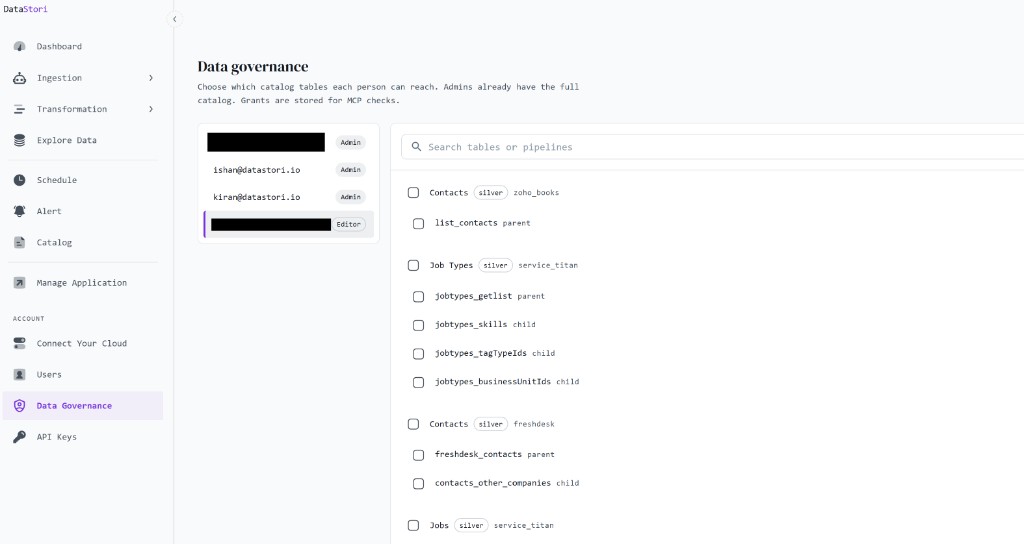
The count at the bottom shows how many tables are selected. Saving replaces the user's previous grants with the tables you ticked.
If you select an Admin, every table is ticked and the list is locked, because Admins already reach the full catalog. To limit an Admin's data access, first change their role on the Users page. See Inviting users and roles.
New tables
Grants are per table. When a new pipeline or table is added to the catalog, Editors and Viewers do not get it automatically. This includes gold tables from a new transformation, even when the person already has access to the silver tables it was built from. An Admin has to grant it to each person who needs it.